
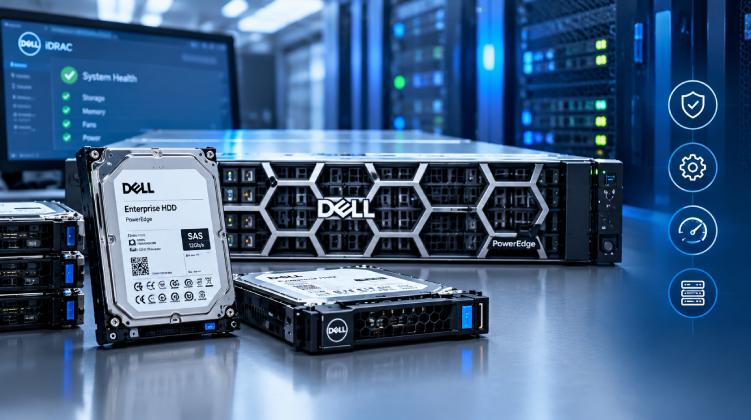
When a drive fails in a Dell PowerEdge server, the instinct is to find any enterprise drive with the same capacity and swap it in. Sometimes that works. Other times it leads to missing health data in iDRAC, a drive that won’t initialize, or a RAID array that quietly loses its safety net.
Dell servers are built as validated systems, and the hard drive is one of the parts where that validation matters most. This guide explains how to identify the right Dell-compatible HDD, what to check before ordering, and how to avoid the mistakes that cause trouble during replacement.
Why Dell Drive Compatibility Is More Than Capacity and Speed
A PowerEdge server relies on a chain of components working together: the drive, the hot-swap carrier, the backplane, the PERC RAID controller, and the iDRAC management controller. A mismatch anywhere in that chain can cause problems that are hard to trace.
- Firmware validation: Dell qualifies specific drive models and firmware versions with each server generation. Validated drives report accurate health and predictive failure data to iDRAC.
- Carrier compatibility: Dell hot-swap drives sit in model-specific trays. A drive without the right carrier cannot be seated or hot-swapped safely.
- Controller behavior: PERC controllers manage drives based on their reported features. Unexpected sector formats or recording methods can affect rebuilds and array stability.
Drives sold under the Dell label are typically manufactured by major drive makers and customized with Dell firmware. That is why a drive that looks identical on paper may behave differently inside a PowerEdge chassis.
Step 1: Identify Your Exact Server Model and Generation
Start with the server itself, not the drive. A PowerEdge R640, R740, R750, and R760 may share a form factor but differ in backplane design, supported interfaces, and drive firmware requirements.
- Find the model on the front bezel or in iDRAC.
- Use the Service Tag, printed on the pull-out tag or shown in iDRAC, to look up the original configuration and supported parts on Dell’s support site.
- Note the generation. Older 13th-generation servers and current 15th- and 16th-generation models do not always accept the same drives or carriers.
Write down the model and Service Tag before contacting any supplier. It prevents most ordering errors on its own.
Step 2: Match Form Factor, Interface, and Speed
Form Factor
- 3.5-inch LFF drives deliver the largest capacities and suit backup, file, and archive servers.
- 2.5-inch SFF drives fit higher-density chassis and are common in 10K SAS configurations. A 2.5-inch drive can sit in a 3.5-inch bay, but only with the correct Dell hybrid carrier.
Interface
- 12Gb/s SAS drives (including Nearline SAS) work with dual-port redundancy and are the standard for production arrays.
- Nearline SATA drives cost less per terabyte but run over a single port. Confirm your backplane supports SATA before ordering.
- NVMe is a separate category and applies to SSDs, not spinning disks.
Rotational Speed
- 7.2K RPM drives are the standard for capacity-focused storage.
- 10K RPM SAS drives suit workloads that need better random performance without moving fully to flash.
- 15K RPM drives exist in older configurations, but many teams now replace them with SSDs.
Step 3: Check Sector Format and Controller Support
Dell drives ship in 512n, 512e (emulated), or 4Kn formats. Most current PERC controllers handle 512e well, but older controllers and some operating systems do not support 4Kn. Review the PERC model in your server, such as an H730, H740, or H755, and confirm the format is supported.
Never mix sector formats within a single RAID virtual disk unless Dell’s documentation says it is supported. This is a common cause of unexpected array behavior.
Original Dell Drives vs. Third-Party Drives
Dell’s newer PowerEdge generations generally accept non-Dell drives, but acceptance does not mean full support. Third-party drives may show as uncertified in iDRAC, report limited SMART or predictive failure data, or be excluded from Dell’s warranty troubleshooting.
| Factor | Dell-Validated Drive | Non-Validated Drive |
| iDRAC health reporting | Full | Often limited |
| Firmware updates through Dell tools | Supported | Usually unavailable |
| Support case handling | Straightforward | May require swapping the drive first |
| Carrier included or matched | Yes | Often sold separately |
For production servers under Dell support, validated drives are the safer choice. For secondary or lab systems, the savings from alternatives may be worth the trade-off.
Common Mistakes When Replacing Dell Server HDDs
- Ordering by capacity alone. Two 4TB drives can differ in interface, sector format, and firmware.
- Forgetting the carrier. Many replacement drives arrive without the Dell tray and cannot be installed as-is.
- Mixing drive types in one array. Different RPM, cache sizes, or firmware can cause uneven performance.
- Skipping firmware updates. After replacement, update the drive and PERC firmware using Dell Update Packages or the Lifecycle Controller so the new drive matches the rest of the array.
- Replacing the wrong drive. Confirm the failed drive’s slot in iDRAC and use the blink LED function before pulling anything.
A Safe Replacement Workflow
- Confirm the failure in iDRAC or OpenManage and note the drive’s slot, model, and firmware.
- Check the array state. If the array is already degraded, avoid unnecessary changes and verify your backup first.
- Hot-swap the failed drive with an identical or validated replacement.
- Monitor the rebuild in the PERC controller until it completes.
- Update firmware if the new drive ships with a different version.
- Log the change with the part number, slot, and date for future audits.
Sourcing Dell-Compatible Drives in Bangladesh
For teams in Bangladesh, a failed drive often means a rushed hunt through unverified sellers, and counterfeit or relabeled stock is a real risk. The better approach is to work with a supplier that handles enterprise hardware regularly, can match part numbers to your server model, and keeps stock locally.
Datacom offers Dell server HDDs across common PowerEdge generations, including SAS and nearline options in several capacities. If you aren’t sure which model fits your server, a trusted Dell hardware supplier can verify compatibility against your Service Tag before you order, which helps avoid costly returns and extended downtime.
Final Thoughts
Replacing a Dell server HDD is simple when the right preparation is done first. Identify the server and generation, match the form factor, interface, and sector format, and prefer validated drives for production systems. Follow a careful replacement and firmware routine, and your PowerEdge storage will keep reporting accurately and rebuilding cleanly when the next drive reaches the end of its life.